From question bank to decision
Build a quiz, invite people to sit it in the browser, and review proctored, section-wise results. Here is the whole loop.
Quizzes
Create a quiz with a name, a duration in minutes, and how many questions each person should get. Questions are imported afterwards as structured MCQ JSON — question text, up to five choices, a section, and the correct answer.
No LLM processing. Questions must be supplied in the expected JSON schema. The platform does not interpret unstructured question files.
Authoring questions
A question file is a JSON array, one object per question. Five fields, four of them required. It is a format you can generate from a spreadsheet, a script, or an AI assistant of your own — the platform simply will not accept an unstructured file and guess at it.
| Field | Required | Rule |
|---|---|---|
text |
Yes | The question itself. Up to 2,000 characters. |
options |
Yes | Up to five answer choices, none of them blank. Four is the norm. |
correctAnswer |
Yes |
Which option is correct, counted from 1 — so
1 is the first choice and 4 the fourth.
0 is not a valid answer.
|
section |
Yes | Groups the question. Drives section-wise reporting and the per-attempt draw. Spell it identically everywhere. |
imageUrl |
No | An https:// image URL shown with the question. |
A minimal, complete example — correctAnswer is highlighted, and
2 means the second option, "60 km/h":
[
  {
    "text": "A train travels 180 km in 3 hours. What is its average speed?",
    "section": "Numerical Reasoning",
    "options": ["50 km/h", "60 km/h", "70 km/h", "90 km/h"],
    "correctAnswer": 2
  }
]
Maths, typeset with KaTeX
Write LaTeX between dollar signs in text or in any option, and
it renders as proper typeset maths for the participant.
{
  "text": "Simplify $\\sqrt{12} + \\sqrt{27}$.",
  "section": "Algebra",
  "options": ["$5\\sqrt{3}$", "$6\\sqrt{3}$",
              "$39$", "$\\sqrt{39}$"],
  "correctAnswer": 1
}
Note the double backslash: \\sqrt in JSON is a
single \sqrt once parsed. That is the single most common
authoring mistake. KaTeX runs with linking and image commands disabled, so
\href, \url and \includegraphics stay
inert in question text.
Diagrams and images
Add an optional imageUrl and it is displayed alongside the
question — diagrams, charts, pattern sequences. SVG works particularly well.
{
  "text": "Which shape comes next?",
  "section": "Visual Reasoning",
  "imageUrl": "https://your-cdn.example.com/seq.svg",
  "options": ["Square", "Triangle",
              "Circle", "Pentagon"],
  "correctAnswer": 3
}
https:// only — plain http: is rejected because
browsers block it as mixed content during an exam.
Images are linked, not stored — host them somewhere you control.
The participant's browser loads the image straight from whatever host you name. We check the URL is well-formed; we do not fetch the file, copy it, or watch it afterwards. So if that host goes down, rate-limits, or the picture is swapped after import, the exam sees the change and we cannot warn you. If an image does fail to load, the participant gets a short "image could not be loaded" line and the question stays fully answerable — a broken image never blocks an exam.
HTML is shown, not run
Question text is always displayed as plain text, never interpreted as markup.
Write < and > where you need angle
brackets, and an expression like a < b is safe to put in a
question.
Starter files
Three ready-to-edit examples:
No question bank yet?
You do not need one to start. The quiz authoring guide covers generating a full set with an AI assistant, the maths notation available, how to host images so they survive exam day, and how much one quiz holds.
Randomised question sets
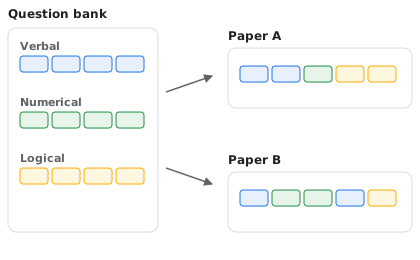
Each attempt draws N questions spread across the sections present in the quiz: an even share per section, with any remaining slots filled at random from questions not yet picked. Where a section holds fewer questions than its share, all of them are used.
The result: people sitting the same quiz do not see the same paper.
Participants & profiles
Create participants one at a time or bulk-import them. Profiles describe the context an assessment is conducted for — a job role, a course, a cohort, a test battery — so results can be read in context rather than as a bare score.
Typo-tolerant typeahead search runs across participants, quizzes, profiles, and bulk batches — a misspelled name still finds the right record.
Assessments & invites
Create assessments individually or in bulk — a bulk batch produces one row per participant. Each person receives a unique secret key with an expiry date, and keys can be resent when someone misses the window.
They start the exam with that key. There is no participant account for your team to create or manage.
Taking the exam
Exams are sat in the browser — nothing to install. The timer starts when the participant starts, and the assessment ends automatically once the configured duration elapses.
- They cannot pause or stop midway.
- They can go back to earlier questions and change answers.
- Answering a question moves them to the next one automatically.
- If a session drops, the attempt can be resumed.
- They can raise an issue from the exam UI.
Proctoring
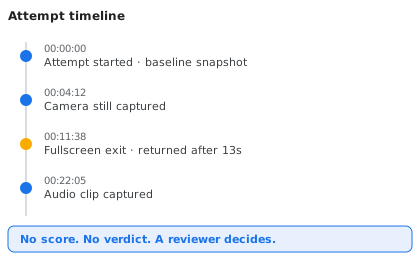
Camera stills, short audio clips, and fullscreen and focus events are captured and timestamped, then presented to a reviewer as a single time-ordered timeline.
Proctoring observes and records; it never blocks an attempt. Whether an attempt is acceptable is a human judgement made afterwards.
Results & reporting
Every attempt is reported section by section, so someone who is strong on verbal reasoning and weak on numerical reads that way instead of collapsing into a single number.
- Search and filter results across participants, quizzes, and profiles.
- Open a detailed view for any single attempt.
- Export any filtered result set to CSV.
Organisation & users
Invite your team as ADMIN or STANDARD users, each scoped to your organisation. Maintain your billing profile and notification email settings in one place, and land on a dashboard of organisation-wide counts every time you sign in.
Every record — quizzes, participants, assessments, evidence — belongs to your organisation and is never visible to another.